
Kami App and Book Creator, both built for Schoology
Kami App connects directly with Schoology, so teachers can assign, annotate, autograde, and sync grades without leaving the tools they already use every day.
Book Creator is added straight into a course’s Materials menu, so students can create, reflect, and share their own books from inside the same course.
One Schoology workflow, built to support instructional practice
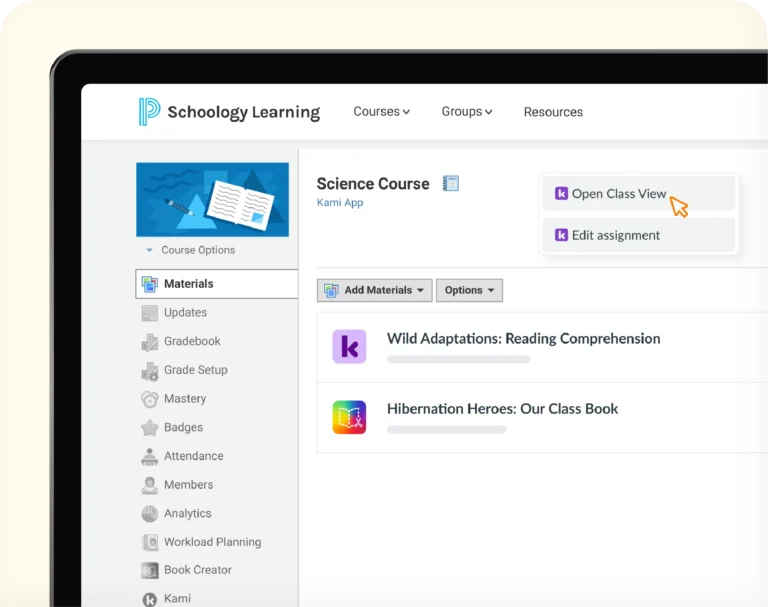
One course, two ways to support instructional practice
Kami App lets teachers assign, grade, and track work on documents. Book Creator gives students a place to create and reflect. Both run inside Schoology.
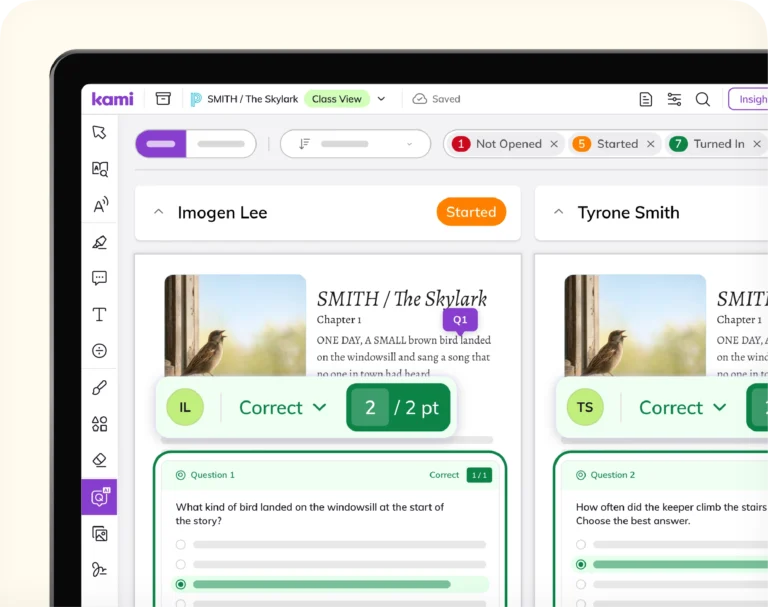
Class-wide visibility while work is happening
Insights and autograding surface where students are stuck while there’s still time to act, instead of after an assignment is turned in.
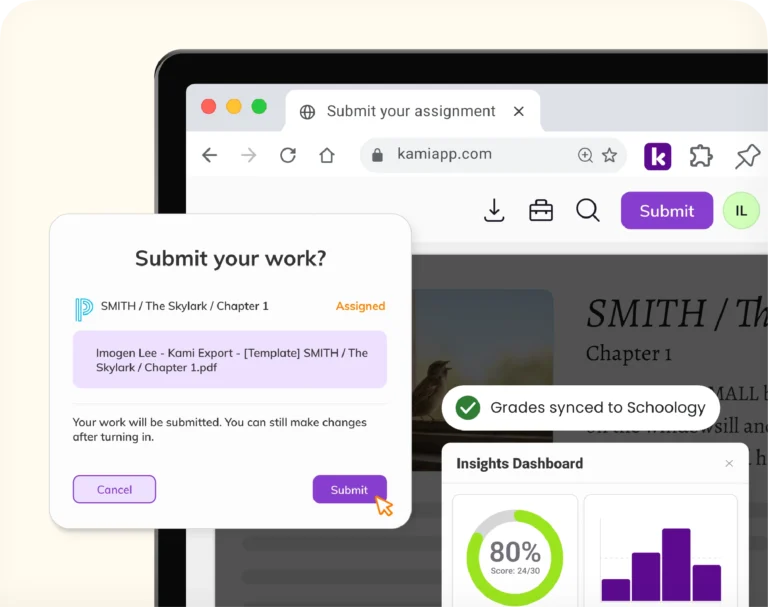
Nothing to re-enter by hand for Kami App
Kami App grades sync automatically to the Schoology grade book, so grading day doesn’t add a manual step for that product.
How Kami App works with Schoology
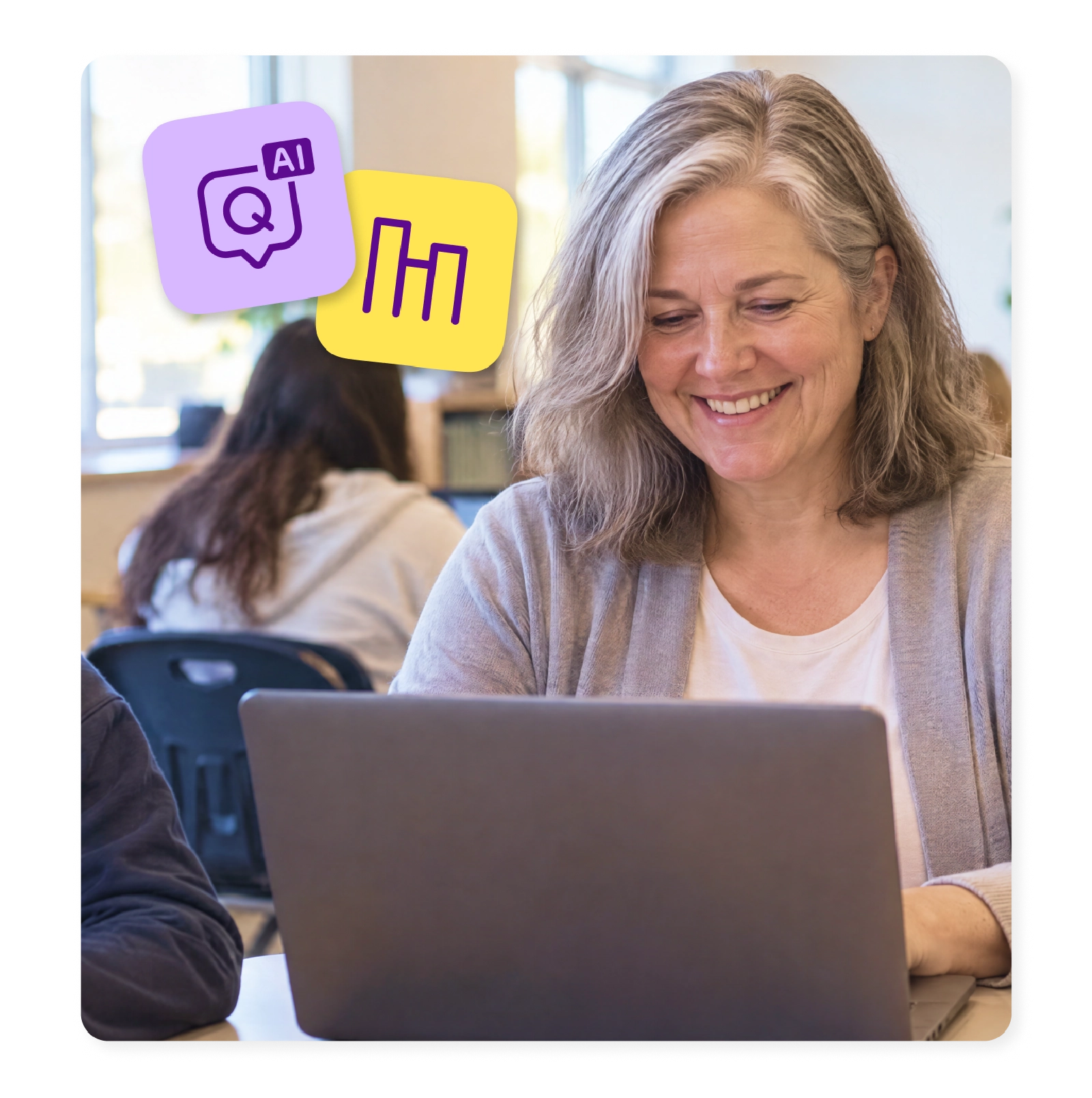
Autograde with Questions AI
Turn any assignment into an autograded assessment, scored automatically as students submit.
Grades that sync automatically
Completed work and grades sync back to the Schoology grade book, so nothing needs re-entering by hand.
Real-time Insights
See how the whole class is progressing while students are still working, with files autosaving to Google Drive or OneDrive as they go.
Everything you do, do it faster with Kami App and Schoology
Make any resource engaging and accessible
Differentiate and individualize instruction
Promote student voice and choice
Manage and distribute documents
Support student collaboration
Assess, grade, and give feedback
Monitor live progress and provide support
Access individual and class insights
Create Schoology assignments with Book Creator
Assign from Materials
Add Book Creator to a course and choose the setup that fits the assignment.
Students launch straight in
No separate login or account creation. Students open their assigned book directly from Schoology.
Grade inside Book Creator, record it in Schoology
Book Creator doesn’t sync grades automatically. Teachers review and comment on student books in Book Creator, then record the grade in Schoology’s grade book separately.
Kami App vs. Book Creator inside Schoology
Kami App
Book Creator
Trusted by 50+ million teachers and students worldwide





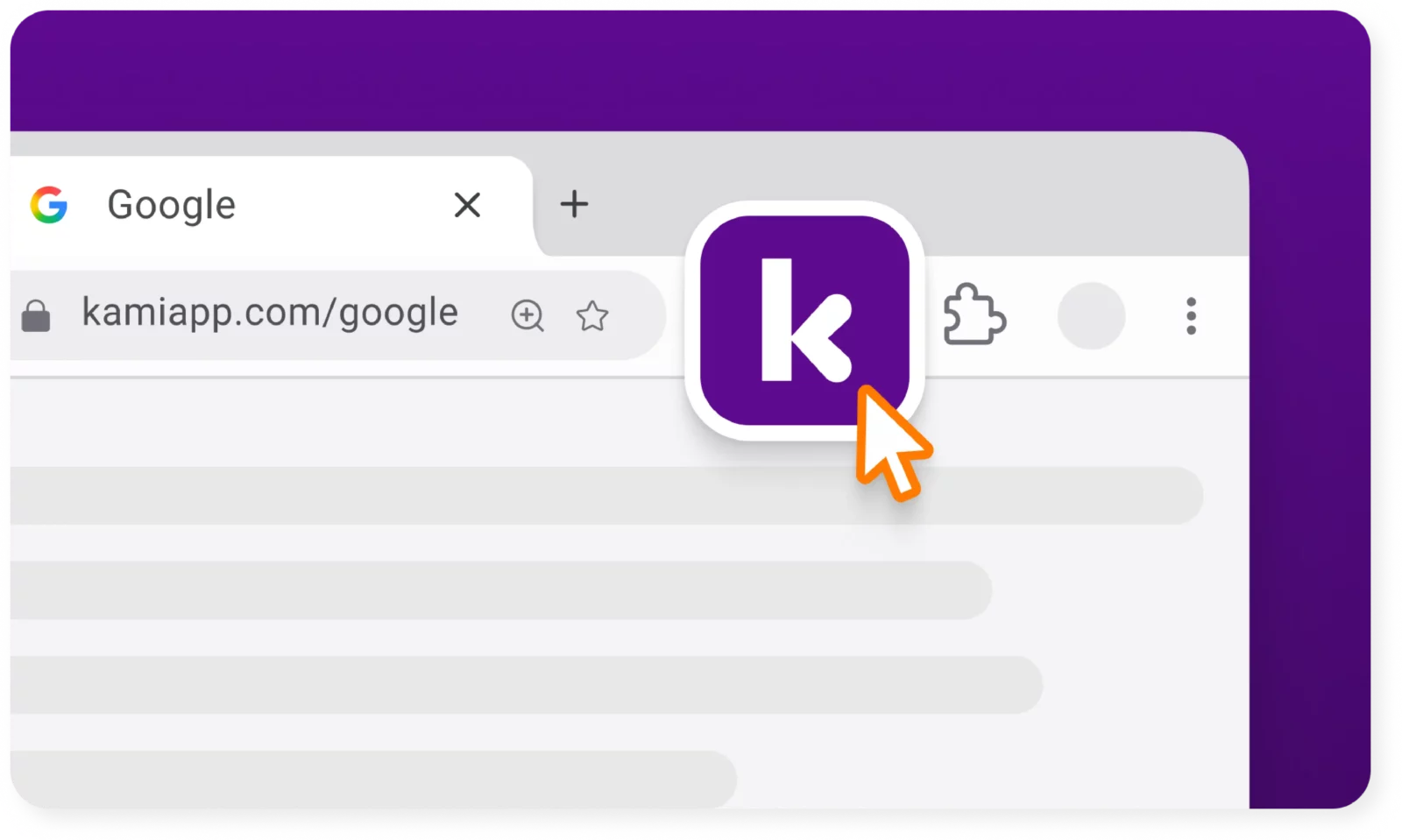
Get the Kami extension for a seamless experience
- Create Google Classroom assignments directly from Kami
- ‘Open with Kami’ buttons appear in Google Docs, Google Sheets, Google Slides.
Frequently asked questions
Browse our FAQs below, or visit our Help Center for comprehensive guides and troubleshooting support.
How do I add Kami to Schoology?
A school or district admin installs Kami through the 1EdTech Learning Tools Interoperability (LTI) standard. See the Schoology integration for the installation guide.
What can teachers do with Kami App in Schoology?
Teachers can create Kami App assignments, collect student work, and review it inside Schoology. See Kami App.
What can teachers do with Book Creator in Schoology?
Teachers can add Book Creator projects to a course and assign them to students. See Book Creator.
Does Kami Companion or Kami Coach also integrate with Schoology?
Not as a direct integration. Kami Companion works as a browser extension alongside Schoology, and Kami Coach doesn’t have an LMS integration today.
Get the most out of Schoology