
Safer AI with Kami: responsible classroom AI that keeps teachers in control | Kami


Teachers are being asked to use AI, but the risks are real.
Safer AI with Kami is a solution.
If you teach right now, you’ve felt it. AI is showing up everywhere, and it’s not always clear what belongs in a classroom.
Some tools save time and lower barriers for students. Others raise immediate concerns: accuracy, privacy, student overreliance, and the fear of losing control of instruction.
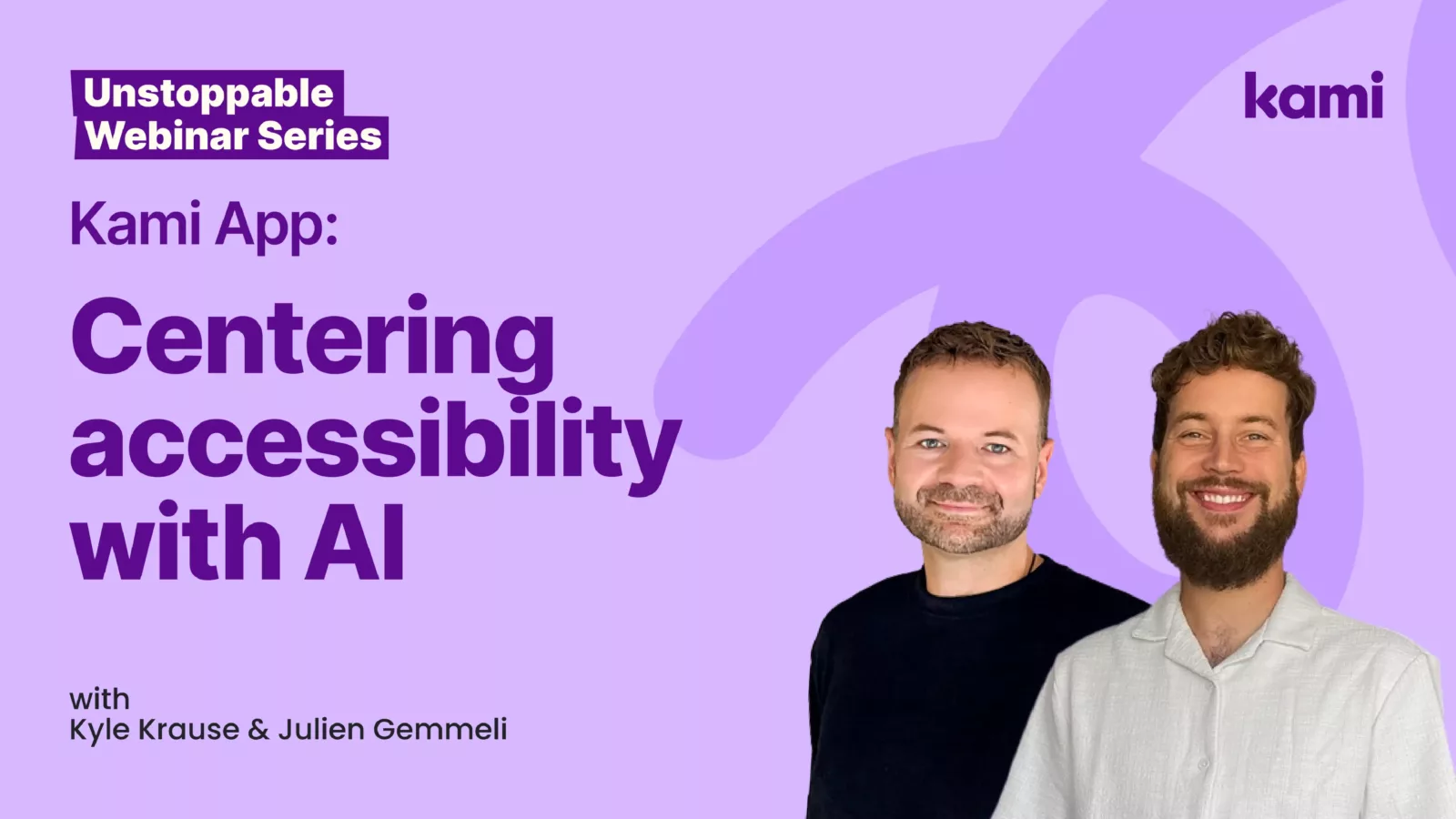
That tension came through clearly in our recent webinar: you can’t separate the promise from the peril. The goal is not “more AI.” The goal is safer, more intentional AI that supports learning without replacing teacher judgment.
This post recaps the practical classroom shifts shared in the session, with a focus on one question many teachers are asking:
How can I use AI ethically and productively while keeping students safe and keeping myself in control?
What “safer AI” looks like in a real classroom
“Safer AI” is not a label. It’s a set of choices you make on purpose.
In the webinar, the conversation kept coming back to three teacher-centered priorities:
- Accessibility and independence, without lowering expectations
- Support that nudges thinking, not tools that spoon-feed answers
- Controls and guardrails that keep teachers in the driver’s seat
That is the lens for how Kami approaches AI: support learning inside the work students are already doing, with clear boundaries and teacher control.
Start with the most common classroom need: access
A single lesson can include students reading at different levels, students with IEP accommodations, and multilingual learners who need language support to participate fully.
Teachers want students working from the same content. They also need students to actually understand that content so the task stays rigorous.
Use the Understand menu to reduce barriers, not change the task
In the session, two Understand menu tools stood out because they help students keep moving without taking the thinking away.
1) Translate
Translation can be the difference between a student giving up and a student engaging.
A practical workflow shared in the webinar:
- Students highlight text and translate it into the language they need.
- Students can use read aloud on the translated text to support comprehension.
- Students can save the translation by creating a comment from the response, so it stays visible when they move on to answer questions.
- Teacher use matters here too. You can translate key sections in advance to create supports proactively, not just reactively.
2) Explain (a scaffold, not an answer key)
Many AI tools respond to a question by giving the answer.
The Explain tool is designed differently. In the demo, it:
- prompts students to recall context,
- asks guiding questions,
- and nudges them toward the next step.
That matters because “safer AI” in the classroom often means helping students think, not removing the thinking.
It also works beyond text. In the session, Explain was used on a historical photograph to help students interpret setting, context, and clues. That kind of scaffold supports stronger analysis, especially for students who struggle to access background knowledge quickly.
Yes, and this is where safer AI becomes tangible.
A key teacher question: “Can I control which AI tools students use?”
The webinar highlighted Feature Control, which allows teachers to choose which tools students can access in a given document or activity.
That means:
- If the assignment is “summarize the article,” you can turn off summarization tools.
- If you are assessing language acquisition, you can turn off translation.
- If you want students to practice analysis, you can keep supports like Explain while limiting tools that would shortcut the work.
Safer AI is often less about the tool itself and more about whether teachers can set the boundaries that match the learning goal.
Safer AI also means safer assessment workflows
Assessment is where many teachers feel the risks most sharply. If AI can generate text instantly, how do you check for understanding without spending hours rebuilding everything?
The session demonstrated Questions AI as a way to create more efficient checks for understanding while keeping tasks grounded in your instructional materials.
Generate questions from existing content (with depth-of-knowledge options)
In the webinar demo, Questions AI was used to generate:
- multiple choice questions for recall,
- questions for broader comprehension,
- and a short answer question that required evidence from the text.
The practical takeaway: you can build an assessment that matches your goal, not a one-size-fits-all quiz.
Convert existing questions into digital questions (and reduce grading friction)
If you already have questions on a worksheet or reading guide, conversion can help you:
- make responses easier for students to complete,
- streamline scoring (especially for multiple choice),
- and reduce formatting issues that make grading harder.
This is not about removing teacher review. It is about removing unnecessary time spent on tasks that don’t improve learning.
One practical shift you can try this week using Safer AI with Kami
If you want a simple starting point, try this in your next reading-based lesson:
- Give students the same core text.
- Turn on Translate and Explain.
- Turn off any tools that would complete the task for them (based on your objective).
- Ask one question that requires evidence from the text.
- Watch for the difference between “students can’t start” and “students can keep going.”
Teachers do not need another tool that makes decisions for them.
That is where safer AI shows up: not in a policy document, but in whether students can access the work and stay responsible for the thinking.
Why Safer AI with Kami matters
They need tools that:
- support diverse learners,
- keep instruction rigorous,
- protect student privacy and independence,
- and help teachers stay in control of what happens in the learning experience.
That is the heart of safer AI with Kami: intentional supports with real guardrails, built for the classroom.
Watch the webinar recording and try the classroom-ready tools shown in the session.
Blogs you may also like
Your March Classroom Activities, Planned


Summer Reading Resources: Journals, Author Studies, and More
April Classroom Resources: End-of-Year Energy That Actually Inspires