
Assistive technology for dyslexia: a classroom guide to reading support | Kami

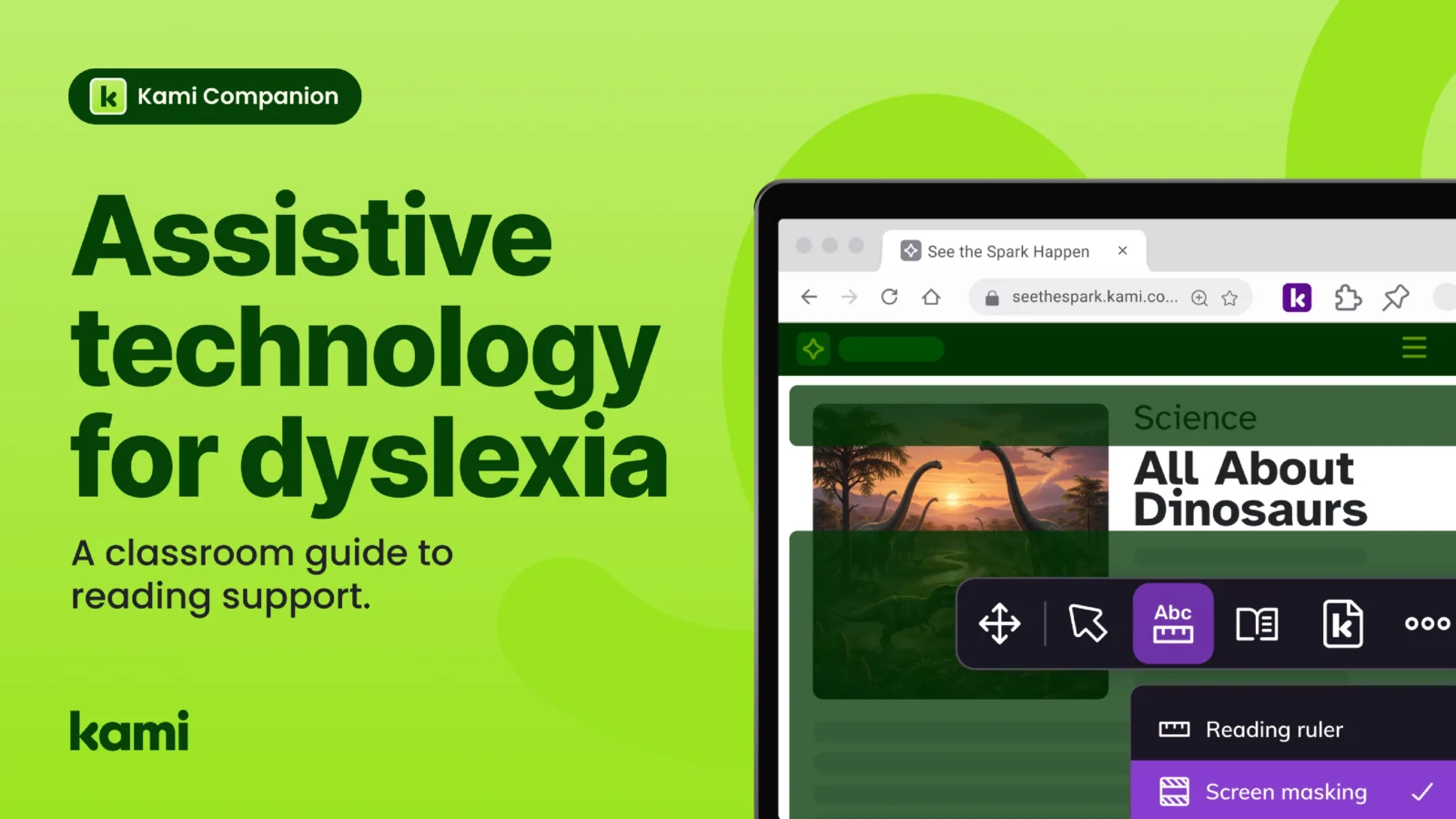

It’s fifth-period science, and the assigned reading is a four-page article on the web. Most of the class is annotating. One student has read the first paragraph twice and still can’t say what it was about. They aren’t distracted or unmotivated. Decoding the words is taking all the effort they would normally spend understanding them.
That gap between reading the words and understanding the ideas is what assistive technology for dyslexia is built to close. Done well, it lets students with dyslexia work with the same grade-level text as their peers, at the same time, without waiting for an adult to read it to them.
This guide covers what the tools do, which ones matter most for reading, how to choose them, and how to roll them out so no one gets singled out.
What assistive technology for dyslexia does, and what it doesn’t
Assistive technology for dyslexia lowers the decoding load so students can reach the content. It doesn’t teach decoding. That work belongs to structured literacy instruction, and the two run side by side. A student can build fluency skills in intervention while using read aloud to take part in science, social studies, and every other subject.
It helps to separate two ideas. Compensatory tools, such as read aloud and voice typing, work around the difficulty so a student can take in and express ideas now. Remediation tools aim to build the underlying skill over time. Most classroom tools for access are compensatory, and that’s fine. The risk is expecting one kind to do the other’s job.
Federal law makes this a required consideration. Under the Individuals with Disabilities Education Act (IDEA), an assistive technology device can be any item, piece of equipment, or product system, including commercially available software, that increases, maintains, or improves a child’s functional capabilities. Each time an individualized education program (IEP) team develops, reviews, or revises a child’s IEP, it must consider whether the child needs assistive technology devices and services. For the regulatory language, see the IDEA definition of an assistive technology device and the US Department of Education’s myths and facts on assistive technology.
Assistive technology for reading: the tools that matter
Students with dyslexia often need support in a few specific places. These categories come up most:
- Text to speech with highlighting, so students hear the text while following along on screen
- Reading focus tools, such as line focus, screen masks, and reading rulers, that isolate one line at a time
- Vocabulary support, including dictionaries with audio and picture definitions
- Digital highlighting and annotation, so students mark up text without a printed copy
- Text access for PDFs and images, since much of the curriculum arrives as files a basic reader can’t open
- Writing supports, such as voice typing and word prediction with phonetic spelling help
Read aloud is usually the foundation. When students hear the text, they can spend their attention on meaning. That’s why assistive technology for reading comprehension tends to start with text to speech, then add focus and vocabulary supports on top.
Writing needs its own support. Many students with dyslexia can say far more than they can spell and organize on the page. Voice typing and word prediction help their writing keep up with their thinking.
How to choose assistive technology tools students will use
A tool only helps if students reach for it. A few questions separate the ones that stick from the ones that sit unused:
Does it work on the content students already use? Students read websites, Google Docs, online textbooks, and PDFs, often in the same hour. A tool that works in only one of those leaves gaps, and gaps turn into workarounds.
Can students start it themselves? If an adult has to launch the tool each time, the student has traded one dependency for another. The goal is a student who opens an assignment and gets what they need.
Is it available to everyone, or only to some? Supports that look different, or that require leaving the room, carry stigma. Students stop using what makes them stand out.
Does it fit your devices and your IT team? Check browser and device support before a trial, and ask who manages updates and settings across classrooms.
Does it match the IEP or Section 504 plan? Tools should connect to the supports a student’s team has already decided on. For a refresher on how those plans differ, see our guide to IEP and 504 plan differences.
Trial a tool on a real assignment rather than a demo. Ask a student with dyslexia what helped and what got in the way. They will tell you quickly.
Rolling out assistive technology without singling students out
Rollouts tend to work best when access is part of everyday instruction. This is the thinking behind Universal Design for Learning (UDL): offer multiple ways to take in and express ideas, and let students choose what works.
In practice, that looks like a few habits:
- Make reading supports available to the whole class, so using them is ordinary.
- Start with one assignment type, such as the weekly article, and build from there.
- Show students how to adjust speed, voice, and focus tools, then let them pick.
- Give teachers short, practical professional learning on the tools, so setup doesn’t land on one person.
- Revisit what’s working at IEP and 504 reviews, with the student’s own feedback in the room.
A student who once waited for an adult to read to them starts working alongside classmates. For one example, see this customer story on independence for learners with dyslexia, where a student stopped giving up recess to wait for support. For a school-wide view, see how Peak Prep, a virtual independent-study program in California, made Kami Companion part of the standard setup on every student device instead of adding it case by case.
Where Kami Companion fits
Once you have your criteria, the question is whether a tool meets them across everything students read online. Kami Companion makes web-based learning accessible so more students can participate independently. It provides built-in reading, language, and expression supports across online content and curriculum, so learners can access the same learning as their peers without separate tools or constant teacher intervention.
For reading and writing, the Kami Companion toolbar features include:
- Read aloud, with real-time highlighting and adjustable playback speed
- Immersive Reader, for distraction-free layouts and grammar views
- Reading assist, with screen masking and reading rulers for line-by-line focus
- Dictionary and picture dictionary, with text and audio definitions in English and Spanish
- Predictive text and voice typing, including phonetic spelling support
- Adjust, Explain, and Summarize, AI-assisted supports that match text complexity to a reading level, clarify tricky passages, and condense selected text
Kami Companion works across the web, in Chrome and Microsoft Edge. Assistive technology and special education teams can see how it delivers accommodations across web-based resources.
Kami Companion doesn’t replace structured literacy instruction or an IEP team’s decisions. It gives students with dyslexia a way into grade-level content while that work continues.
Frequently asked questions
There isn’t one best tool. The right mix depends on whether reading, writing, or both is the barrier. Many students benefit from read aloud plus one writing support, such as voice typing or word prediction.
Common examples include text to speech, voice typing, word prediction, reading rulers and screen masks, dictionaries with audio, and digital highlighting. Which ones a student uses should come from their needs and preferences.
Some options are free, including voice typing in Google Docs and dictation in Microsoft Word. Free tools often cover one need at a time, so check whether they work across the websites and documents students use every day.
When an IEP team determines a student needs assistive technology to receive a free appropriate public education, the school district must provide and fund it. Rules differ for students without an IEP, so check with your district.
Make access part of everyday instruction
If you’re weighing reading supports for your classrooms, the Companion One-Pager Bundle gives you a quick, shareable overview of what Kami Companion does and who it helps.
Prefer to talk it through? Chat with our team.
Blogs you may also like
Kami Companion and UDL: how built-in supports bring the framework to life

Text to speech Chrome extension for school: how AT teams evaluate one
ADA Title II and classroom tools: what school districts need to know