

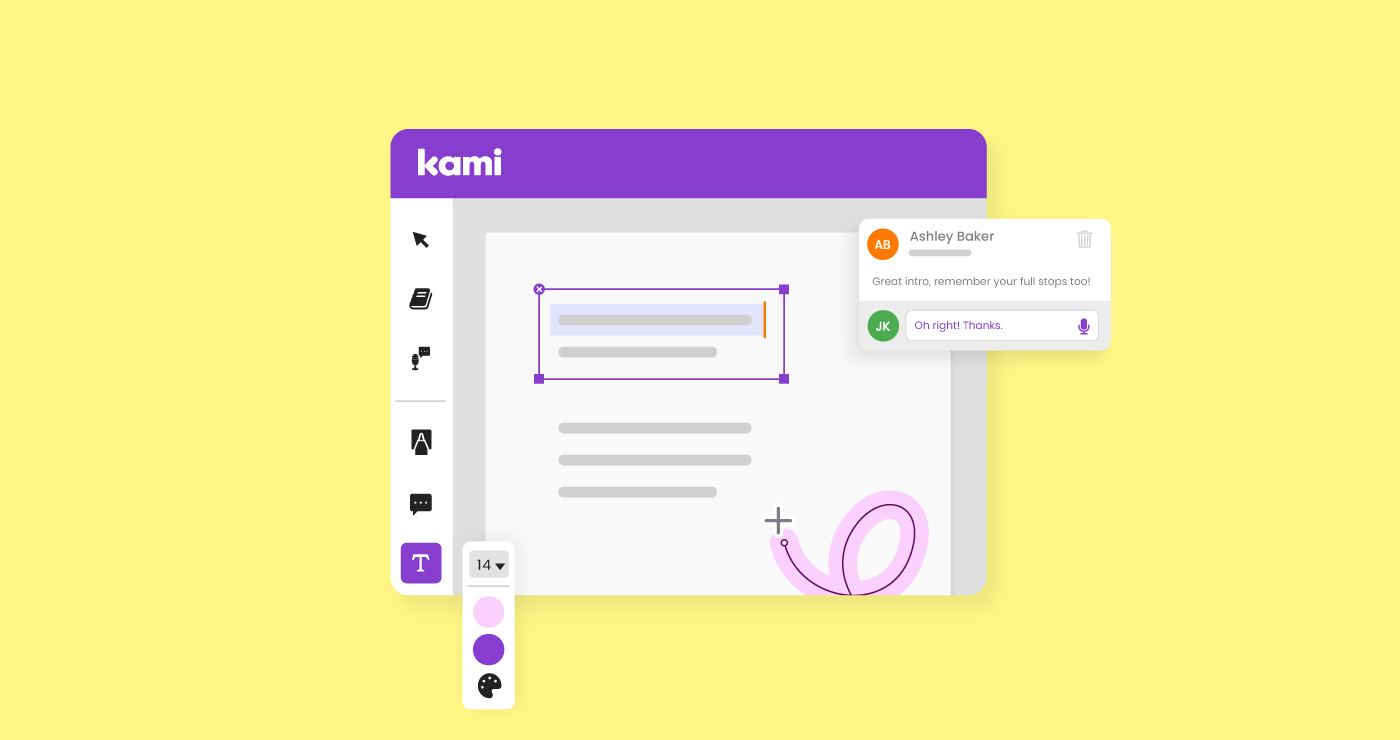

Picture this: you’ve been emailed a document that needs your input and you don’t have a printer, or frankly, the patience for one. What do you do?
That’s the problem Kami was built to solve. It started as a PDF annotation tool. Today, it’s a collaborative workspace used by teachers, students, and teams to review, comment, and share documents, with accessibility tools and AI-powered supports available on paid plans.
Here’s everything you need to know.
Try Kami app for free, no download, no credit card required.
See It Before You Try It
Seeing is believing, especially with annotation tools. Here’s a quick look at Kami in action before we get into the details.
Free PDF Annotation Tools: What’s Included
Kami runs in your browser and works across Mac, PC, iPad, Android, and iPhone, no software install required. It handles PDFs, images, Google Docs, Slides, Sheets, and more.
The core annotation tools are free. Here’s what they do:
Drawing Tool
Think of it as a digital pen. Sketch freehand, write notes, fill in form fields, color things in — anything you’d reach for a pen to do on paper. Adjust stroke thickness, transparency, and switch between solid or dotted lines. Especially useful for students who think better when they can draw their answers.
Text Box Tool
Click anywhere on a document and start typing. The Text Box tool works like a mini word processor, pick your font, size, colour, even drop in an emoji. If you’ve ever had to print a form just to fill it in and scan it back, this is the tool that ends that habit.
Comment Tool
Sticky notes, but better. Click anywhere on the page or highlight a passage to anchor a comment to it. Comments live in the margins, stay out of your way, and can be shown or hidden whenever you want. It’s the cleanest way to give feedback on a document without cluttering the page.
Basic text comments are free. Audio and video comments, useful when typed feedback doesn’t quite cut it, are available on paid plans.
Markup Tool
Highlight, strikethrough, underline- the standard reading and editing toolkit, but with more flexibility. Use color-coded highlights to separate your own notes from editorial feedback, or to flag must-reads from nice-to-reads. Pair it with the Comment tool for annotation that communicates clearly.
Read Aloud
Kami will read any text on the page out loud. Click the tool, click the page, and it goes. Originally built for reading comprehension support and accessibility, it’s also just useful when you’ve been staring at text for too long and need your ears to take over.
How to Export an Annotated PDF from Kami
Annotation is only useful if you can get the document out in the right format. Kami keeps it simple:
- Download as PDF, annotations are embedded and preserved exactly as you see them
- Save to Google Drive or OneDrive, syncs automatically to your connected storage
- Share via Kami link, recipients can view and collaborate without needing to download anything
- Print, with all annotations included
To export: hit the menu icon in the top-right corner of Kami and choose your option.
💡 Pro tip
If you’re sending to someone who doesn’t use Kami, always export as PDF. Every annotation, comment, and markup transfers cleanly, no Kami account needed to read it.
What’s Free, What’s Paid?
Kami’s free plan covers what you need to annotate, collaborate, and export. Paid plans add tools built for classroom workflows, LMS integrations, AI grading, and richer feedback options.
| Feature | Free plan | Paid plan |
| Drawing tool | ✓ Free | ✓ Paid |
| Text box tool | ✓ Free | ✓ Paid |
| Text comment | ✓ Free | ✓ Paid |
| Markup & highlighting | ✓ Free | ✓ Paid |
| Read Aloud | ✓ Free | ✓ Paid |
| Audio & video comments | — | ✓ Paid |
| Text to speech | — | ✓ Paid |
| Split screen | — | ✓ Paid |
| LMS integration (Google Classroom, Microsoft Teams, Canvas) | — | ✓ Paid |
| AI-powered grading & assessment | — | ✓ Paid |
Not sure which plan fits? Start with free. You don’t need a credit card and you can upgrade any time once you know what you need.
PDF Annotation for Teachers & Google Classroom
Kami integrates directly with the platforms your school already uses, Google Classroom, Microsoft Teams, Canvas, Schoology. The idea is simple: you shouldn’t have to change how you work just to use a better annotation tool.
In practice, that means:
- Distribute a PDF worksheet through Google Classroom, students open it in Kami, annotate it, and submit it back without ever leaving the classroom flow
- Leave a 30-second voice note on a student’s work instead of typing three paragraphs of feedback they might not read
- Let AI handle the repetitive parts of grading so you can focus on the work that actually needs your eyes
- Support students who need more time with material using Read Aloud and text-to-speech, no separate app, no setup
- Give students options for how they respond: typing, drawing, recording, more ways in means more students actually engaged
No more printer jams. No more chasing paper. Kami brings the classroom workflow entirely online.
Free teacher training, no strings attached
Book a session with one of Kami’s Teacher Success Champions and get a personalized walkthrough of the tools that matter most for your classroom. Free for all educators.
Collaborate on PDFs in Real Time
Kami isn’t a solo tool. Share any document via a Kami link or QR code, and multiple people can annotate it at the same time. You’ll see changes appear in real time, the same way you would in a Google Doc.
A few things worth knowing:
- Anyone with the link can collaborate, they don’t need a Kami account
- Need a signature from someone in a different city? Send them the signature link, they can sign on any touchscreen device
- Turn on notifications and you’ll get an email the moment someone starts editing, useful when you’re waiting on a document to come back
It’s the kind of feature that sounds like a nice-to-have until you’re trying to get five people’s input on a document before a deadline.
How to annotate a PDF free, no download needed
Less than a minute, genuinely:
- Go to kamiapp.com and create a free account
- Upload a PDF, image, or document, or connect Google Drive or OneDrive
- Start annotating in your browser immediately
Optional: install the Chrome extension for one-click access to Kami from any page you’re browsing.
Blogs you may also like
Demystifying Depth of Knowledge (DOK): A Practical Guide for Teachers

How to deepen student thinking with the Cycle of Learning
Digital citizenship in schools: screen value over screen time