
Book Creator’s new classroom writing tool puts formatting controls where students can actually use them

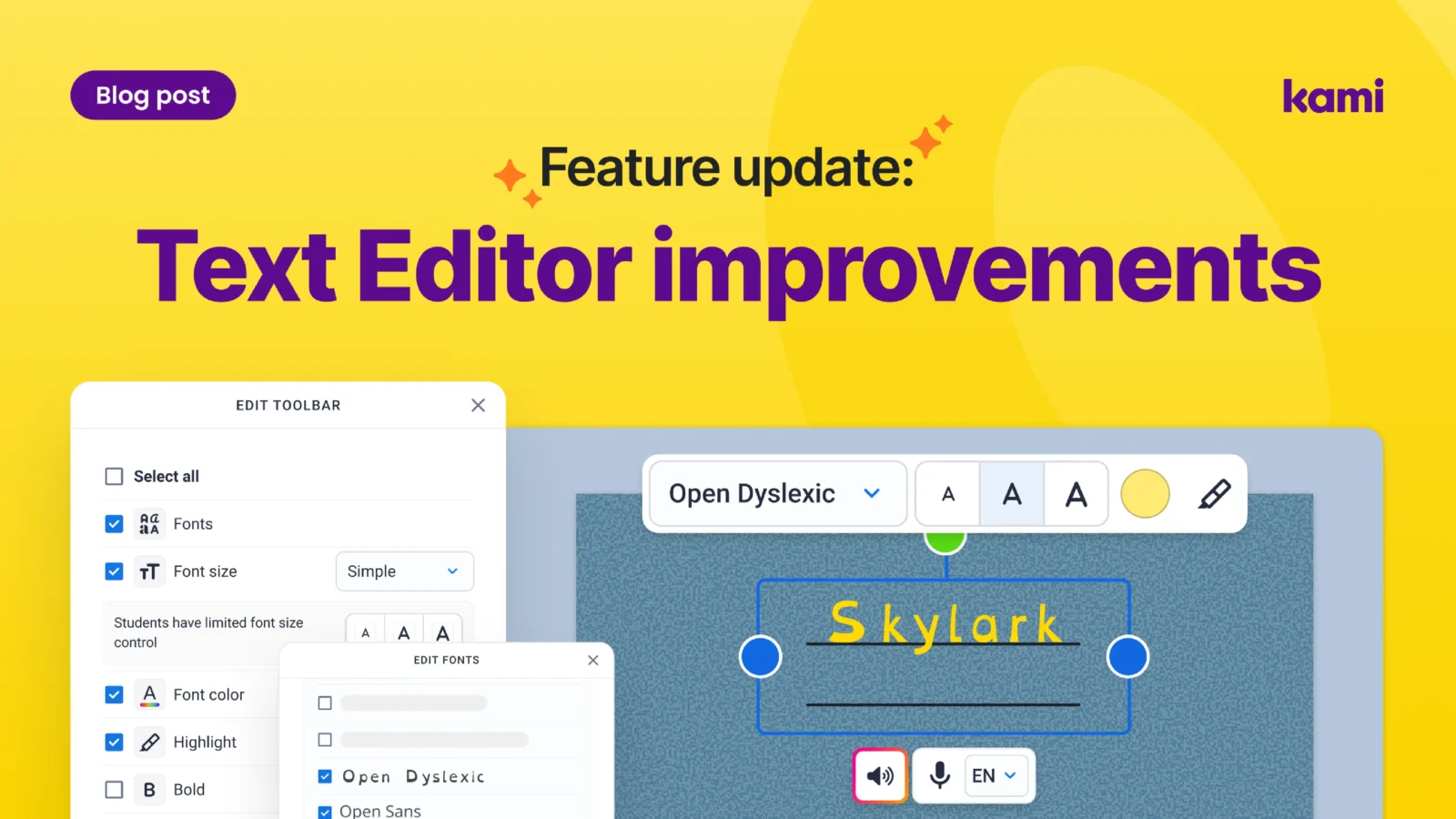

A student opens a blank page in Book Creator, ready to write. Before a single word goes down, they are looking at two separate menus: a toolbar along the top and an inspector panel tucked to the side, each holding half the formatting options they need. For a confident writer, that split is an annoyance. For a younger student, or a student working from an IEP, it can be the difference between writing and giving up before they start.
That gap between what students can do and what they can actually find is the problem behind Book Creator’s latest update to text editing.
Why we changed it
Educators told us the formatting experience was too distracting, too hard to navigate, and, for some students, overwhelming. Controls were split across the text editor and the inspector menu, which meant switching back and forth just to change a font or adjust alignment. That friction added up, especially for younger students and students who need fewer decisions, not more, to stay focused on writing.
One toolbar instead of two menus
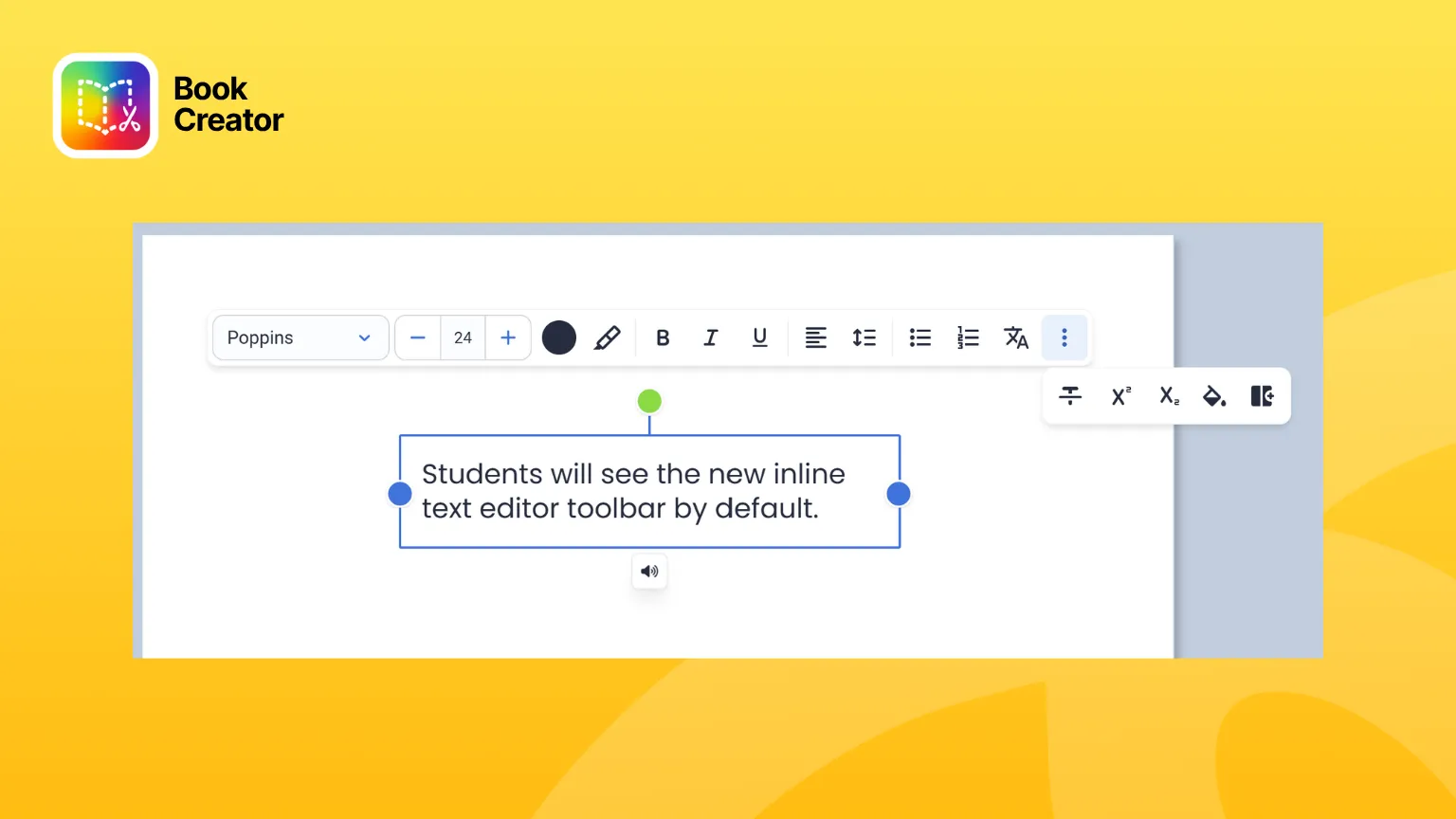
The fix is structural. All users now see a single inline text editing toolbar, with every formatting option visible in one place. Controls that used to live in the inspector panel, like font family, text color, and alignment, now sit directly in the toolbar where students are already working.
The result is a classroom writing tool that behaves the way students expect a toolbar to behave: what you see is what you can use. No more hunting for a setting in a second menu.
New: teachers decide what students see
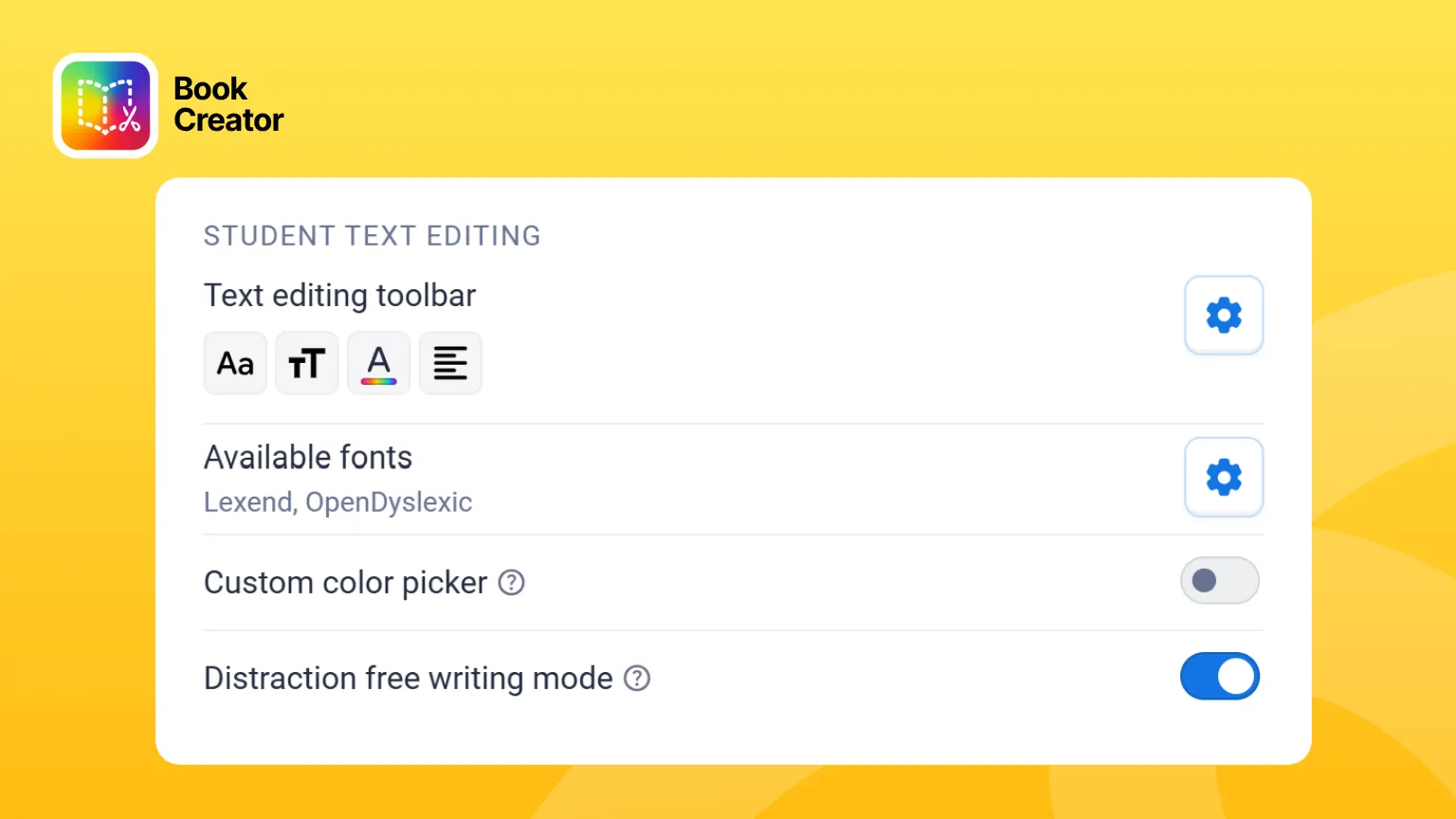
The bigger change for teachers is control. New library settings let you configure exactly which formatting options are available to your students, separate from what you see as the teacher.
By default, students get the same full toolbar teachers do. But not every student needs 70 font choices and a full color picker to write a sentence. If a simpler set of options helps a student stay focused, you can configure that toolbar for your library. Students editing within that library then see the reduced set you chose, while you keep full access on your end.
This is not about taking options away. It is about choice working the way it should: available when it helps, out of the way when it does not. You know your students. Now the toolbar can match what you know.
Did you know? When a student taps into a text box to start editing, Book Creator will also include improved zoom controls. It is a small change, and honestly, one that should have been there from the start. For younger students and students who benefit from a larger, more focused view, it removes one more barrier between them and their writing.
How this fits with the accessibility tools you already use
This update does not introduce new accessibility features on its own. What it does is make the ones already in Book Creator easier to find and configure. The OpenDyslexic font is still there, now reachable from the same toolbar instead of a separate menu. Text-to-speech and speech-to-text software for students with disabilities, already built into Book Creator, work the same way they always have. Distraction-free writing mode is still a toggle in your library settings.
What changes is how much friction stands between a student and those supports. A simpler, unified toolbar means a teacher configuring accommodations is doing it in one place, not several, and a student using those accommodations sees one clear set of tools instead of two competing ones.
What to do next
If you manage a library, take a look at your student text editing settings and decide whether the default toolbar is right for your students or whether a configured version would serve them better. For a full walkthrough of what changed and where to find each setting, see our help center article on inline text editing and custom options.
Blogs you may also like

Making sense of classroom AI in Kami


How to deepen student thinking with the Cycle of Learning

Kami Customer Story: How Comal ISD won teacher buy-in