
Text to speech Chrome extension for school: how AT teams evaluate one


A seventh grade science class opens the same web article on a Tuesday morning. Most students start reading. One student scrolls to the bottom, counts the paragraphs, and waits. The plan is to wait until a teacher or paraprofessional comes by and reads the article aloud. By then, the class discussion has moved on.
That wait is the real cost of reading support that depends on an adult. It also explains why requests for a text to speech Chrome extension land on assistive technology (AT) teams. Someone has to decide which tool is worth rolling out to a whole district, and the feature lists on every vendor page look about the same.
This guide covers what a text to speech extension does in a classroom, how to test one on your own content, and how to read the results as a team.
Why text to speech requests keep landing on AT teams
Text to speech (TTS) reads digital text aloud, usually while highlighting each word. It’s one of the most common accessibility tools for students, and it’s often the first one a teacher asks about. So how does text to speech help students? Hearing text while following the highlighted words can make grade-level content reachable for students who have dyslexia, students with low vision, multilingual learners, and learners who are still building fluency.
The trouble starts with how supports reach students. A teacher finds a tool, installs it for one learner, and the support stays tied to that learner’s device, that teacher’s setup, and whoever remembers how it works. When the tool needs an adult to start it, the student waits. When it’s only available to some learners, it can single them out.
Universal Design for Learning (UDL) offers a better frame. CAST’s UDL guidelines describe multiple means of engagement, representation, and action and expression. A good toolbar offers all three, so students choose what helps without asking permission. That is the standard this guide uses.
What a text to speech Chrome extension does in a classroom
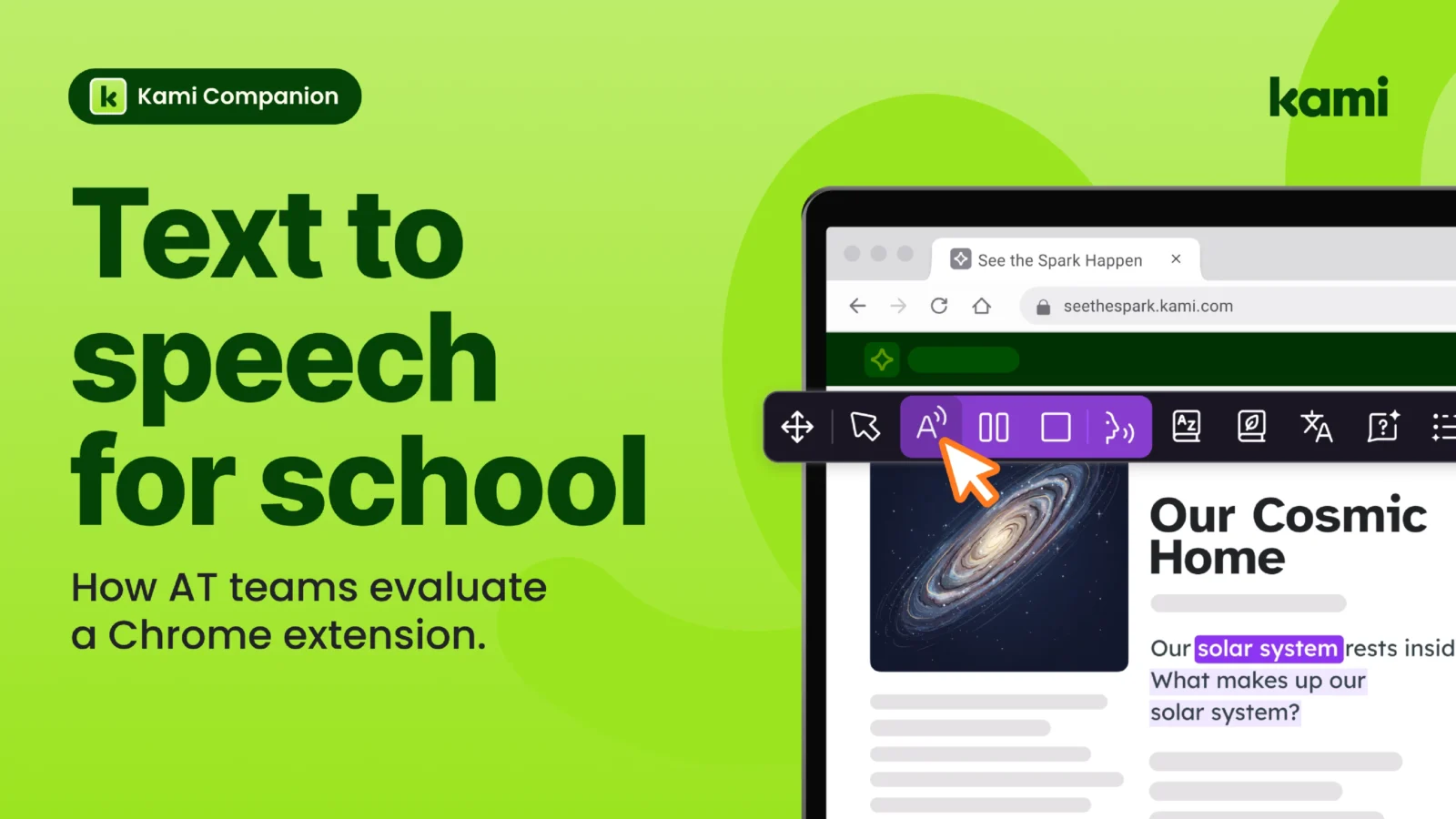
A text to speech extension adds a toolbar to the browser. A student selects text on a page, or opens a document, and the extension reads it aloud. Most let students change the voice and speed, and many highlight words as they’re spoken. Because it lives in the browser, the support can follow a student across web-based curriculum instead of staying inside one app.
Two clarifications help. First, text to speech and speech to text are different tools. Text to speech reads to the student. Speech to text, also called voice typing, lets the student speak and the tool writes. This guide focuses on the first, though voice typing shows up on the rubric below under action and expression.
Second, tools differ in what they can read. Some handle web pages well and struggle with PDFs. Others read documents but not the learning platform your teachers use every day. A feature list won’t tell you which is which. Testing will.
What to test before you choose a text to speech extension
Most accessibility toolbars look alike on paper. The difference shows up when a whole district uses one. The UDL toolbar evaluation rubric scores any toolbar against 12 criteria, four for each UDL principle, so your team compares options on equal terms.
Start by picking two to four toolbars and using a separate copy of the rubric for each. Then test in real work. Use a grade-level text, a web page from your curriculum, and a document your learners open every week. Score each criterion from 0 to 3:
- 0: not present.
- 1: partial. It works in limited places or needs an adult to set up.
- 2: solid. It works across common content, and learners start it themselves.
- 3: strong. It works across the open web and documents without a workaround.
Score what you see, not what a vendor says. And score as a team, including a teacher and, where possible, a learner who uses supports every day.
Engagement: does the learner own the support?
This section asks whether students control their own tools. Four criteria apply:
- Learner choice: learners pick the supports they want and change them without asking an adult.
- Independence: a learner can start and stop a support alone, in the middle of a task.
- Low stigma: supports are available to every learner, so no one is singled out.
- Consistency: settings carry across sessions and devices.
For a text to speech extension, a quick test is to ask a student to pause the voice, speed it up, and come back to it after switching tabs. If they can’t do that without help, the score tells you so.
Representation: can learners get to the content?
Text to speech lives here, in the read aloud criterion. It asks whether text is read aloud with highlighting on web pages and documents, not just one file type. The other three criteria matter because a student who uses audio often needs more than audio:
- Reading level and vocabulary: learners adjust text complexity or look up unfamiliar words in context.
- Language support: multilingual learners can translate the text on their screen.
- Visual customization: learners change text size, spacing, color, and contrast.
Action and expression: can learners show what they know?
Hearing the text is half the task. Students also have to respond to it. The four criteria here are voice input, writing support, annotation, and works where learning happens. Voice input means learners capture ideas by speaking. Writing support means spelling and drafting help inside their own work. Annotation means learners highlight, mark up, and comment to show their thinking.
The last criterion deserves extra attention. It asks whether supports follow learners across the tools and content your curriculum uses, without leaving the page. By the rubric’s guidance, a toolbar that works only inside one platform or file type scores low on that criterion, even if everything else is strong.
How to read the score
Each principle totals out of 12, and the overall score is out of 36. The total is a starting point. These are the four bands:
| Overall score | Band | What it suggests |
|---|---|---|
| 30 to 36 | Strong | Supports work across web content and documents, and learners use them on their own. Worth a pilot. |
| 22 to 29 | Solid | Good coverage with gaps. Check which principle scored lowest and whether that gap matters for your learners. |
| 13 to 21 | Partial | Works for some learners or some content. Expect extra setup, training, or add-on tools. |
| 0 to 12 | Limited | Likely depends on adult support for most learners. |
Then read the pattern, not just the total. A strong result has balance. A toolbar that scores high on representation but low on engagement gives learners access without ownership. And a 0 on any criterion your learners rely on every day is a flag, whatever the total.
Three questions help a team make sense of the numbers. Which principle matters most for the learners we serve? Where do our learners lose access today? What would we need to see in a pilot to trust this score?
Questions that sit outside the score
Some questions matter a great deal and still don’t belong in a scoring table. Ask these of every option:
- Where does learner data go, and who can see it?
- How does IT deploy and update the toolbar?
- What training do teachers and learners need?
- Can the vendor share accessibility conformance documentation?
Permissions deserve a closer look. Any extension that reads web pages needs permission to see the content of the sites a student visits. That’s normal, because it’s how the tool does its job. On shared devices and student accounts, though, your team should know exactly what an extension asks for and who manages it.
Free, paid, and built-in options
Chromebooks include built-in text to speech. According to Google’s Chromebook support page, Select to Speak reads selected text aloud and highlights each word, while the built-in screen reader, ChromeVox, reads full pages. Both are free and need no install. Both live in accessibility settings, so a student has to know they exist and where to turn them on. Run them through the same rubric as everything else, and see how they score on independence and consistency.
Extensions are a different trade. Many offer a free tier and keep premium voices, higher usage limits, or extra features behind a paid plan. Ask what happens when the free tier runs out in the middle of a semester, and who pays for it when it does.
Where Kami Companion fits
Kami Companion makes web-based learning accessible so more students can participate independently. It provides built-in reading, language, and expression supports across online content and curriculum, so diverse learners can access the same learning as their peers without separate tools or constant teacher intervention.
Kami Companion is a Chrome and Edge toolbar. Read aloud sits alongside voice typing, translation, reading level adjustments, and screen masking, so the supports a student needs sit together in the browser. It works across web-based content rather than inside one platform. For the conformance question above, an Accessibility Conformance Report and a WCAG 2.1 AA conformance letter (April 2026) are available for Kami Companion.
We’d rather you score it than take our word for it. Use the same rubric, the same three test contents, and the same team you used for every other option. Learn more about Kami Companion when you’re ready to put it through the test.
Frequently asked questions
Is there a text to speech extension for Chrome?
Yes, there are many. They differ in what they can read, how they highlight text, how they handle documents, and what sits behind a paid plan. The rubric above helps you compare them on the same terms.
Can a text to speech extension read PDFs and Google Docs?
Some can and some can’t. Support varies by tool, so test with the document your learners open every week, not a demo file.
How does text to speech help students?
It lets students hear text while following highlighted words, which can make grade-level content reachable for learners who decode slowly or who are learning English. It also lets students start reading tasks on their own instead of waiting for an adult.
How do I turn on text to speech on a Chromebook?
Select the time at the bottom right, choose Settings, then Accessibility. Under “Text-to-Speech,” turn on Select-to-speak. Students can then select text and hear it read aloud with each word highlighted. See Google’s Chromebook support page for the full steps.
Score your next toolbar on equal terms
A feature list tells you what a toolbar can do. A rubric tells you what your learners can do with it, on their own, in your content. Download the rubric, pick two to four options, and score them as a team.
Blogs you may also like
Making sense of classroom AI in Kami

How to deepen student thinking with the Cycle of Learning
Kami Customer Story: How Comal ISD won teacher buy-in